
Are you a current patient ready to request an appointment?
If you’re a current patient, you can request an appointment via our patient portal, MYIO. MYIO will also host your Telehealth appointments. (New patients: use this link.)
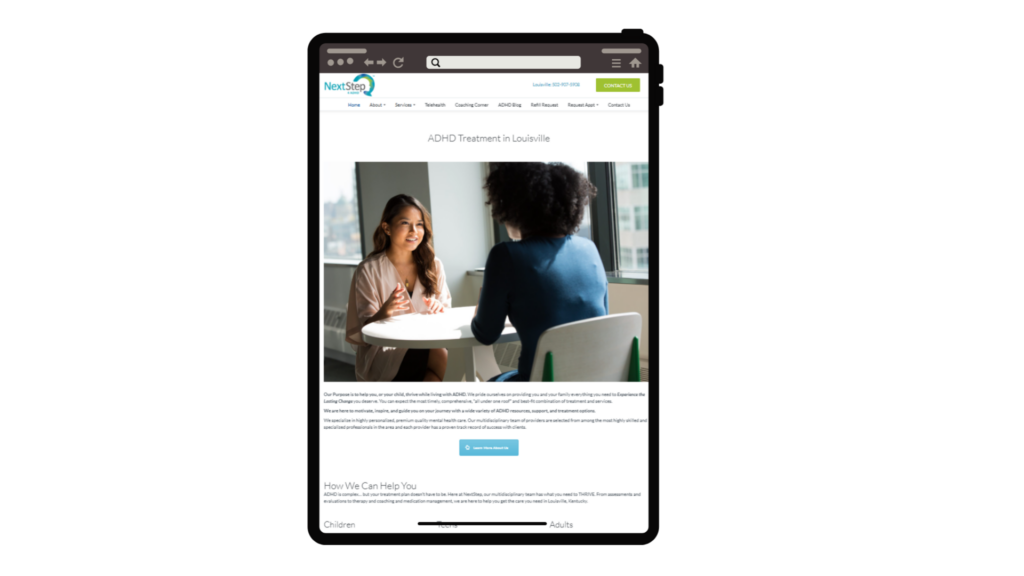
Getting Started with MYIO
Account Set Up
Next Step 4 Mental Health has invited you to set up your MYIO account! MYIO will be your secure connection to your care team.
You can set up your Next Step 4 Mental Health Patient Portal account on your desktop browser or your mobile phone with the MYIO app.
Supported Devices and Operating Systems
- •Mobile devices must be able to update to the latest iOS or Android operating systems.
- •Supported Browsers: Google Chrome, Microsoft Edge, and Mozilla Firefox. The MYIO patient portal is not compatible with Safari.
Please note older operating systems do not allow updated apps to perform as desired.
Instructions for account setup on your desktop browser:
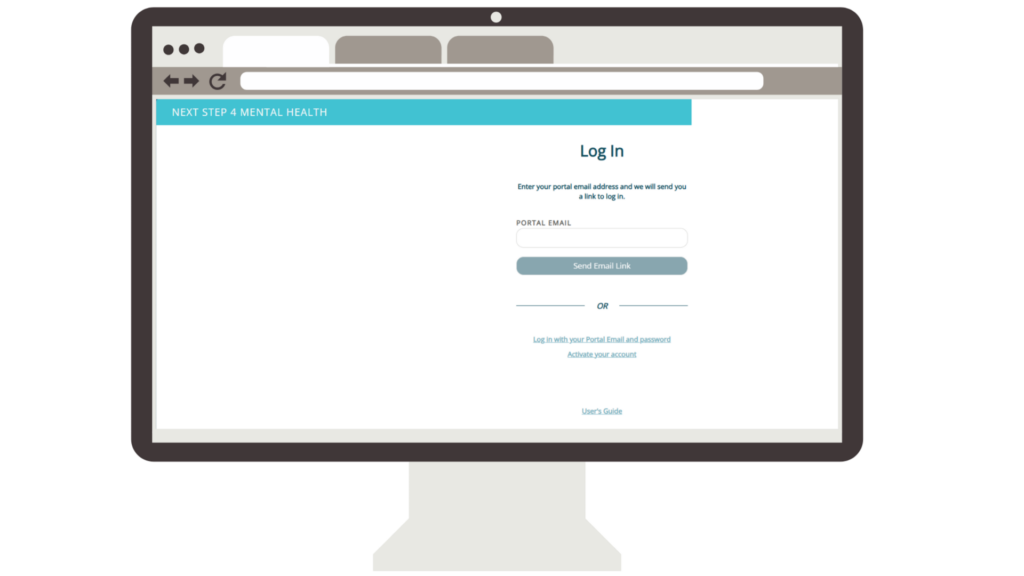
Prior to setting up, make sure you are using the latest version of a MYIO-supported browser. You may need to refresh the page or close it and then reopen your browser to ensure the latest version is active.
To activate your account:
- •Click “Create Account”
- •Enter the access code sent to you via email or text.
- •Verify your date of birth
Instructions for account setup on your mobile device:
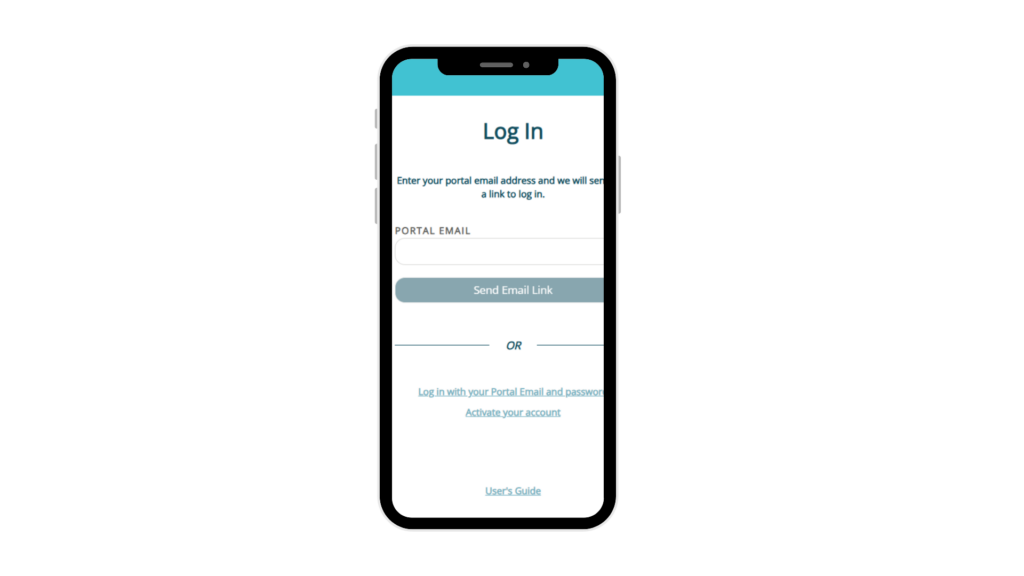
- •Download the MYIO app and set up your account on your mobile device.
- •Make sure your app is running the most recent version. Check the app store and see if there is an update available. If issues persist, delete the app and re-install it on your device. If the app is “freezing,” try force-closing the app and reopening it.
To activate your account:
- •Click “Create Account”
- •Enter the access code sent to you via email or text.
- •Verify your date of birth
- •The access code will be valid for 7 days. If it expires prior to activating your account, contact Next Step 4 Mental Health to receive a new invitation.
Portal Features
BILLING
To view or pay your balance, and to enter credit card information, click on “Billing” in the top right menu in the app, or click “Billing” on the banner. You can also click “View details” under the “Balance Due” header on the welcome screen.
APPOINTMENTS
To view and request appointments, click “Appointments” on the top banner. You can also click “See more” under “Upcoming Appointments” on the welcome screen.
TELEHEALTH APPOINTMENTS
To access your Telehealth appointment, login to your MYIO patient portal. Under “Upcoming Appointments”, click the blue “Make a payment” button to provide payment. After payment, click “Join Now”.
CLINICAL FORMS
To view and complete clinical forms online, click “Clinical Forms” on the top banner or “Fill required forms”.
SECURE MESSAGING
To view, reply to, compose, and add attachments to messages to your provider, click the envelope icon in the top banner.
Click on a message to see contents and reply.
Caution: Deleted messages are not retrievable.
Click the pink “Compose” button to initiate a secure message. Then, you can select recipients (chosen by the practice) from the drop-down list in the “To” field and add attachments.
Need a Sooner Appointment?
If you need a spot sooner than the options shown in MYIO, please call the office as there are additional spots available.
You can reach us at 502-907-5908. (Mobile users: click the number.)